Troubleshooting
Find and Check CDR
Finding the CDR related to a call is the first and most important step when troubleshooting any call-routing issue.
Use the filters on the CDR History page to locate CDRs using known parameters such as Call-ID, Source Number, Destination Number, and others.
WARNING
If a call is not successfully authenticated, the CDR will not contain information such as Customer, Customer Account, Rateplan, and other parameters that are populated only after successful authentication.
In this case, it is recommended to search using SIP request attributes, for example, Call-ID in the Orig Call ID filter.
For details, see the Customers Auth Authentication Documentation
Once the CDR is found, review the Disconnect codes and Disconnect Initiator fields to understand why the call was disconnected.
TIP
See the Internal Disconnect Codes Documentation for a detailed explanation of disconnect reasons.
If you observe unexpected routing behavior - for example, Yeti selects an unexpected Customer Auth, Destination, Dialpeer, or Gateway - continue troubleshooting using the Routing Simulation tool.
If the issue is related to SIP or RTP stack behavior, proceed with Tracing.
Routing simulation
There are two ways how to use Routing Simulation tool:
- Manually from Routing -> Routing Simulation menu - In this case operator have to enter all call attributes manually.
- From CDR. When you want to reproduce call routing of specific call - you can click on "Routing Simulation" button on CDR Show page. In this case all call attributes will be copied from CDR automatically.
Trace capturing
For troubleshooting issues related to SIP signaling or RTP processing Yeti provides mechanism to capture traces in pcap format. There are few places where operator can enable this mechanism:
- Dump Level in Customer auth object
- Dump Level in Termination gateway object
Possible Dump Level values:
- Capture nothing - Tracing disabled
- Capture signaling traffic - SIP signaling traffic will be written to pcap file
- Capture RTP traffic - RTP media traffic will be written to pcap file
- Capture all traffic - Both - SIP and RTP media traffic will be written to pcap file
WARNING
To save system resources it is recommended to use as low Dump Level as possible and disable tracing when it not needed
During enabling tracing Yeti will use maximum Dump Level value across Customer auth objects and all Termination gw that present in routing results.
In case of enabled trace CDR for call will contain link to pcap file on CDR->CDR History page:
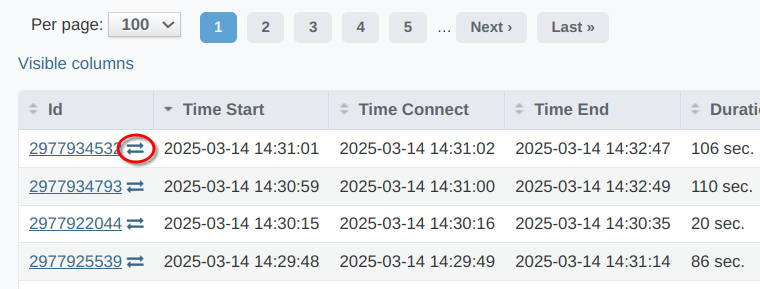
Alternatively it is possible to download trace by clicking trace button on CDR Show page:

It is recommended to use Wireshark to analyze pcap traces.
INFO
Traces are not captured by sniffer on network level but written by SEMS SIP stack by mirroring data sent and received to/from sockets.